How to add GEDCOM data to a genealogy chart PDF using Claude, step by step
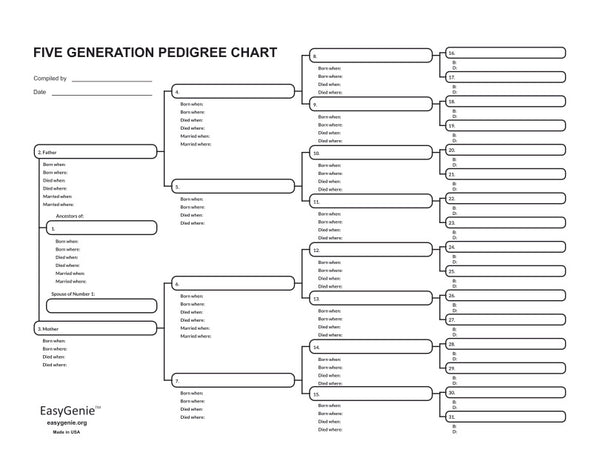
Ian LamontThis is Ian from EasyGenie. I am going to show you how to take our 4 generation fillable genealogy PDF, and fill it out using Claude and a GEDCOM, instead of manually typing it in. Here’s an example of what the filled-in genealogy PDF looks like when opened in Adobe Acrobat:

Using an AI to fill data on the genealogy PDF is way faster than typing, but there are a few things you need to prepare. Some steps are a little complex, such as using a special prompt, and making sure the GEDCOM file isn't too large. And you may need to do a little cleanup in the PDF afterwards. All of the information I am about to show you can be found on the download page for our AI-optimized 4-generation fillable pedigree chart PDF.
AI privacy considerations with GEDCOM data
Note that GEDCOM exports from your genealogy software or online Ancestry account may contain information about living people. They may also be HUGE, and harder for the AI to process. For these reasons, consider restricting the names included in the export.
The AI may also use the data in ways you didn’t anticipate. Check your AI account settings and ask the AI before you get started about how the data will be stored and used. When uploading a GEDCOM to an AI, we strongly recommend using Temporary Chat (ChatGPT) or Incognito mode (Claude), which provides some privacy protections – session data will not be retained or used to train models according to Anthropic and OpenAI.
Step-by-steps instructions
The following method to add GEDCOM data to our fillable PDFs works with ChatGPT and Claude. For Claude, you must use Sonnet or above. Basic Claude models like Haiku won’t work. Google Gemini won't work either, regardless of the model being used.
Free Claude and ChatGPT plans will work to a point, but may stop unexpectedly if you upload a big GEDCOM or make multiple requests.
Here's what you need to do to add GEDCOM data to the genealogy PDF template using AI
- You must use a PC or Mac. It’s very difficult to do this on any mobile device.
- Prepare the GEDCOM using genealogy software or Ancestry, MyHeritage, or a similar service. Smaller files are better.
- Make sure you have a blank copy of our fillable genealogy PDF. If you purchased it from easygenie.org, look in your downloads folder or find the email we sent you with a link to download it. You can use this PDF as many times as you want for personal use.
- Open up ChatGPT or Claude. For Claude, select Sonnet or a better model.
- Choose incognito mode.
- Get your prompt ready (you can copy and paste the prompt included below).
- Attach the two files (the blank PDF template and the GEDCOM) to the AI chat session.
- Start the process by pressing start below the prompt.
The may make mistakes. You MUST check the output.
Sample AI prompt for GEDCOM/PDF integration
"I have attached a 4-generation fillable genealogy chart PDF that includes an embedded file with the font, size, and safe width for each field. Make a copy of the PDF and fill it out for [NAME OF ROOT PERSON] using the attached GEDCOM. For the copy, preserve the original PDF's structure, not just the visible page — including its fillable-form definition and the embedded width file — so the result is still a working interactive form, not just static boxes with text drawn on top. Convert GEDCOM dates to standard date formats. For every field, measure the actual rendered text width against the embedded safe width — don't estimate. If text doesn't fit, abbreviate or drop whole words rather than cutting off mid-word. For fields that combine a date and a place, never shorten or split the date — only adjust the place. Before presenting the result, verify that the parent-child links match the original GEDCOM and the output PDF still has all its fillable fields recognized with your values in them."
Video instructions
The 10-minute video shows the steps to flow GEDCOM data into the PDF.